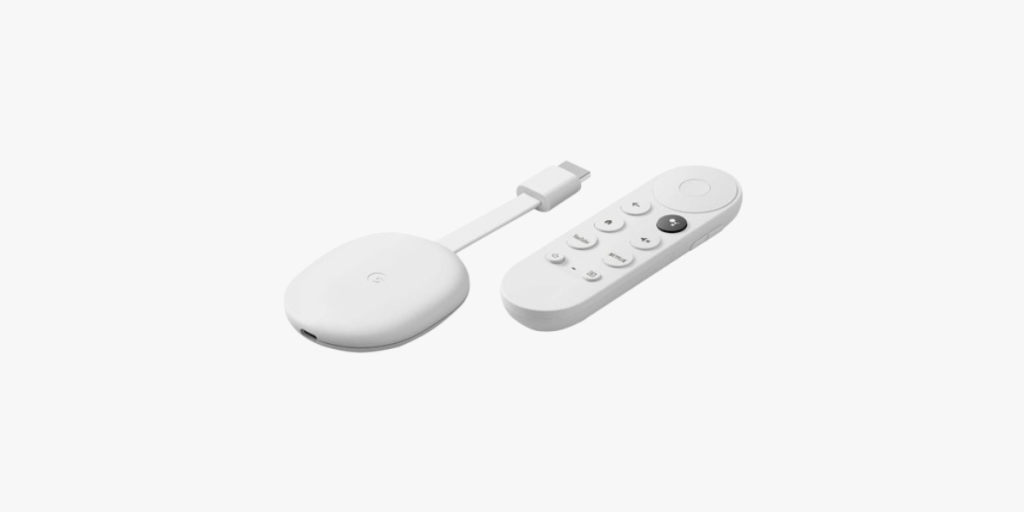
In this guide, we’ll show you how to install lPT\/ on your Chromecast with Google Chromecast Device 


Step 1: Install Downloader App
- Navigate to Home Screen: On your Chromecast with Google TV home screen, hover over the Apps section.
- Search for Downloader: Scroll down and click the search box, then type in “Downloader” Click the search icon.
- Install Downloader: Find the Downloader app under the apps section, click on it, and then click Install.
Step 2: Enable Developer Options
- Open Settings: Press the home button, hover over the top right, and click the settings icon.
- Access System Settings: Scroll down and click System.
- Enable Developer Options: Click on About, then scroll down to Android TV OS build.
- Click this option multiple times until you see the message “You are now a developer”
Step 3: Allow Unknown Sources
- Return to Settings
- Enable Unknown Sources: Find and select the Security & Restrictions section, then enable installations from unknown sources for the Downloader app.
Step 4: Install lPT\/ Smarters Pro
- Launch Downloader App
- Download lPT\/ Smarters Pro: In the Downloader app, enter the following Short Code to download lPT\/ Smarters Pro:
78522. Click Go.